Saved entries
Entries stay in WordPress with attachments up to 25 MB each. Field values and files are encrypted at rest.
RowanWeb Entries Database
Keep submitted entries and attachments in WordPress, even if the notification email fails. Browse entries by form and export them to CSV or Excel.
// examples
Open the list of forms, find an entry, and see how many attempts ended without a submission. The screenshots use test data.
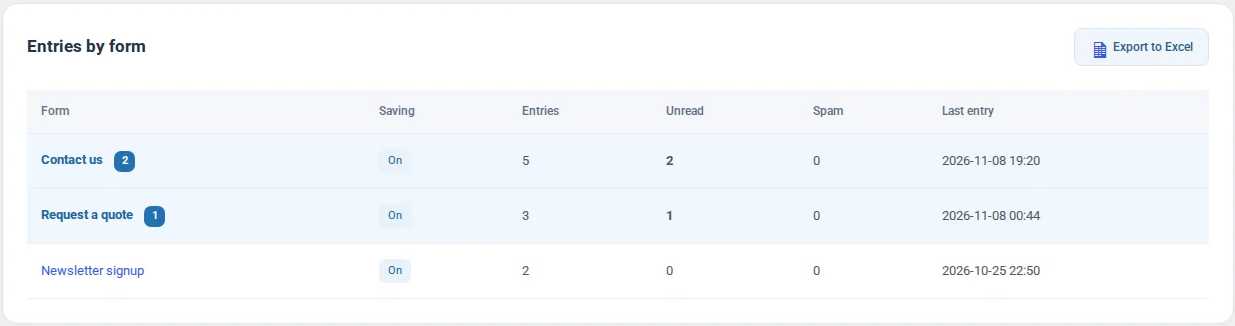
Open Contact → Saved Entries. Forms with unread entries appear first.
In this example, Contact us has five entries, two of them unread. Select the form to open its entries.
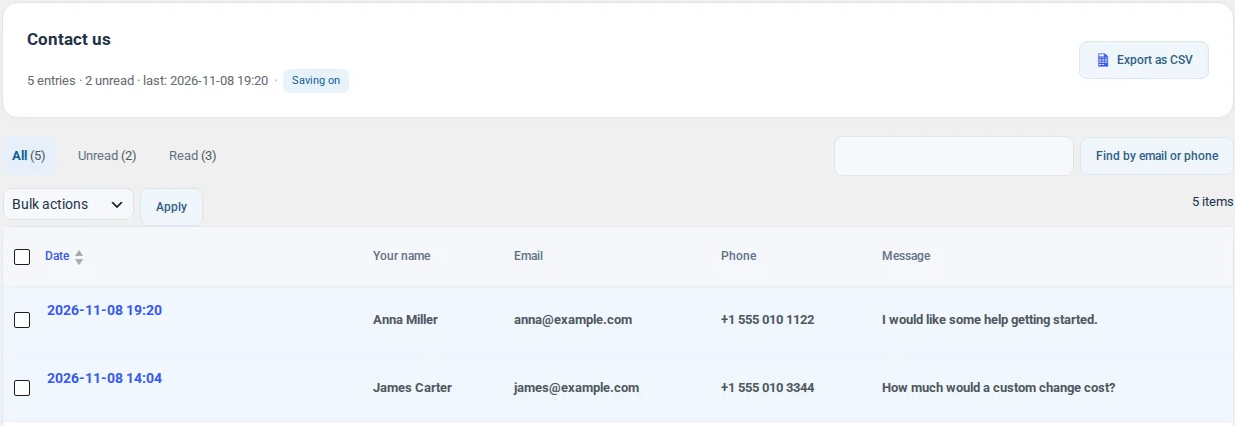
Switch to unread entries or search for an exact email address or phone number.
Select the submission date to open the entry. Export that form’s entries to CSV to work with them in a spreadsheet.
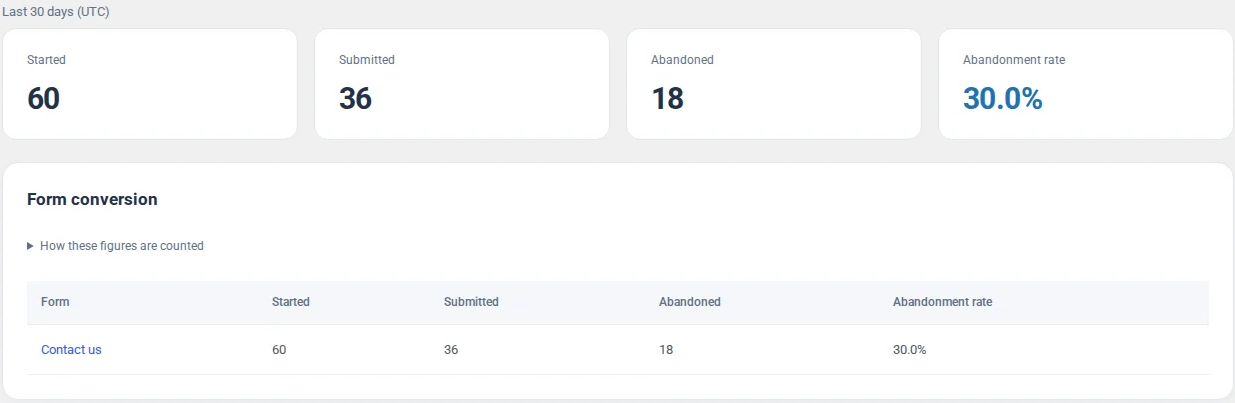
In this example, visitors started the form 60 times. The plugin recorded 36 submissions and 18 abandoned attempts, an abandonment rate of 30%.
An abandoned attempt is recorded after someone enters data and then leaves or stops filling in the form for an extended period.
// free version


Enable storage for the forms you need. Go to Saved Entries to find an unread submission or search by email or phone.
Import existing entries from Contact Form CFDB7 or Flamingo. Repeating an import skips entries already copied.
Turn on abandonment tracking only for selected forms and choose how long to keep the data. Export one form as CSV or all forms as an Excel workbook.
// WebMCP
In a compatible browser, a visitor can ask an AI assistant to prepare an entry. WebMCP tells the assistant what the Contact Form 7 form is for and what each field means.
Prepare a request for a project consultation. My name is Alex and my email is [email protected].
I’ve filled in the form. Please review the details before sending it.
Send
The visitor reviews the details, checks the consent box, and sends the form.
Review the form’s purpose and field descriptions in AI agents. Then enable AI-assisted filling for that form. This free, experimental option is off by default. Chrome provides access through an Origin Trial.

See where visitors stop and who later submits the same form. Get notified when an abandoned attempt is saved or export it for your team.
Contact us report · test data
| Field | Reached field | Stopped at field | Share |
|---|---|---|---|
| 12 | 8 | 44.4% | |
| Phone | 6 | 6 | 33.3% |
| Your name | 18 | 4 | 22.2% |
“Stopped” refers to the last field the visitor interacted with before leaving. Shares are based on the 18 abandoned attempts in this example.
| Metric | What the report shows |
|---|---|
| Returning contacts | 7 in this example |
| Match | Same email address or phone number |
| Outcome | The visitor later submitted the same form successfully |
The report matches later successful submissions against previously saved abandoned attempts.

See abandoned attempts over 30 days across all forms or for one form. The field breakdown shows how far visitors got and the last field they used before leaving.

Pro matches an abandoned attempt to a later submission of the same form by email or phone. Review how much of the form was completed and whether there is contact information.

Export saved abandoned attempts for a form to CSV. Send notifications to Telegram, Slack, Mattermost, Discord, or your own webhook.
For one site: $10 per year or $50 for a lifetime license. Checkout is handled by Freemius. After purchase, you’ll receive a license key and a link to the Pro version.
Installation, imports, and data retention.
Yes. When saving is enabled for the form, the submitted entry appears in Saved Entries even if the notification email fails.
Yes. Install and activate Contact Form 7 first, then enable saving for the forms you want to keep.
Yes. Both are supported, including CFDB7 attachments. Rerunning the import skips entries already copied. The source entries remain in the original plugin.
Attachments up to 25 MB each are encrypted at rest. An administrator can download them from the entry screen.
By default, submitted entries are kept indefinitely and abandoned attempts for 60 days. Both periods can be changed in Settings. Spam and trashed entries are deleted after 30 days.